Stage 3
Contracting
Complete this stage within 24 hours
How to access NLC
Login to HCMS: https://hcms.chims.uppatop.com/
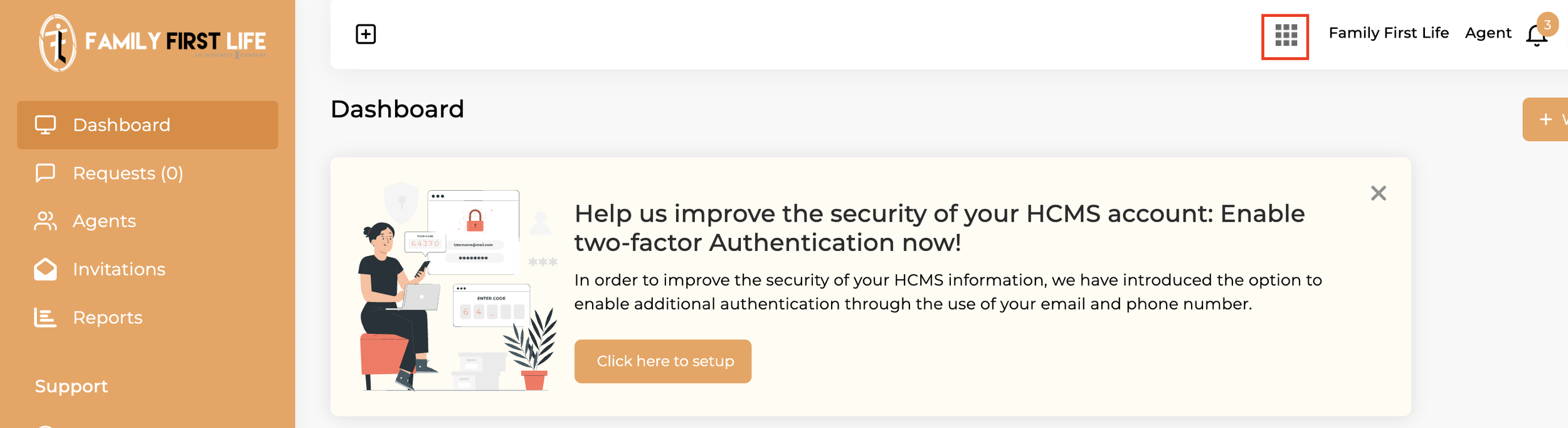
Click the apps menu on the top right, then click the “NLC” logo. This will take you to a new website.
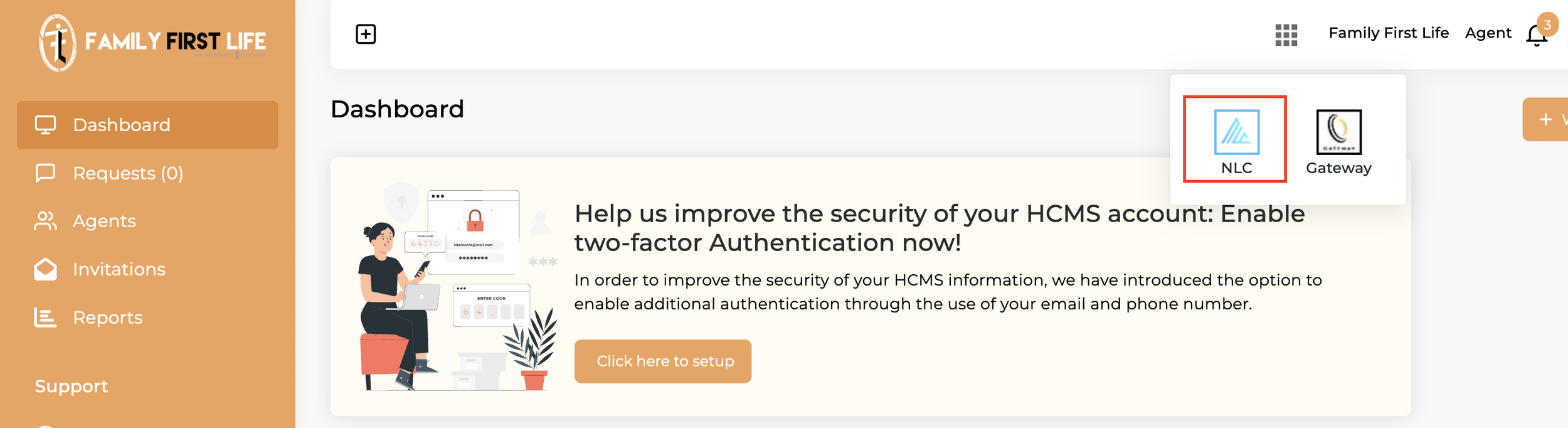
NLC Contracting
Complete all tabs on the left side menu— Bank Details, License, E&O Insurance, Trainings, Employment History, and Questions.
Notes regarding the E&O section:
You cannot copy and paste from the PDF into the dashboard. You will need to type in all the information.
Issued state is your resident state.
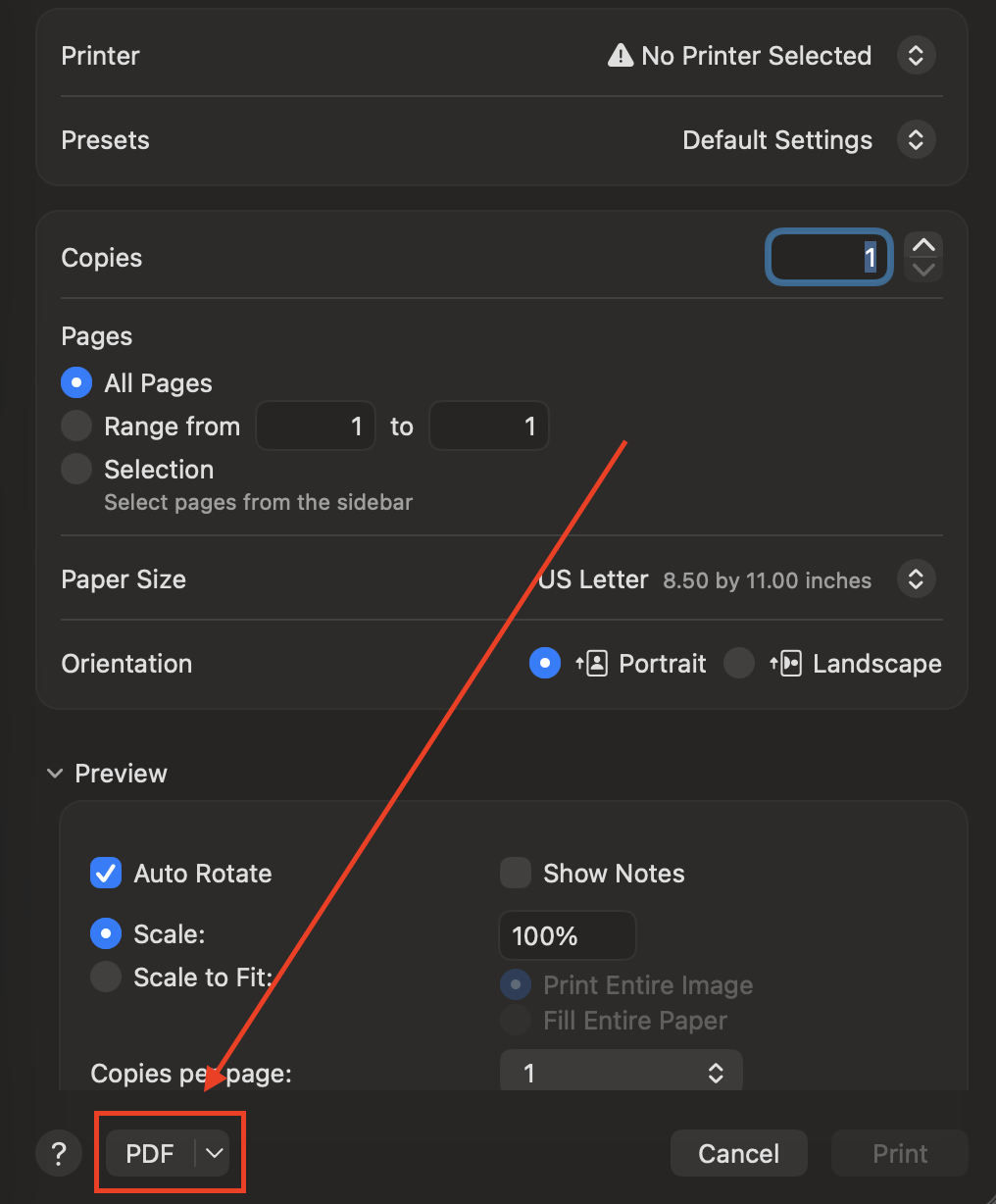
Encrypted PDFs cannot be uploaded. If your PDF is encrypted, try printing it and saving as a new PDF and uploading the new one. If you’re on a Mac, see image below on how to do this.
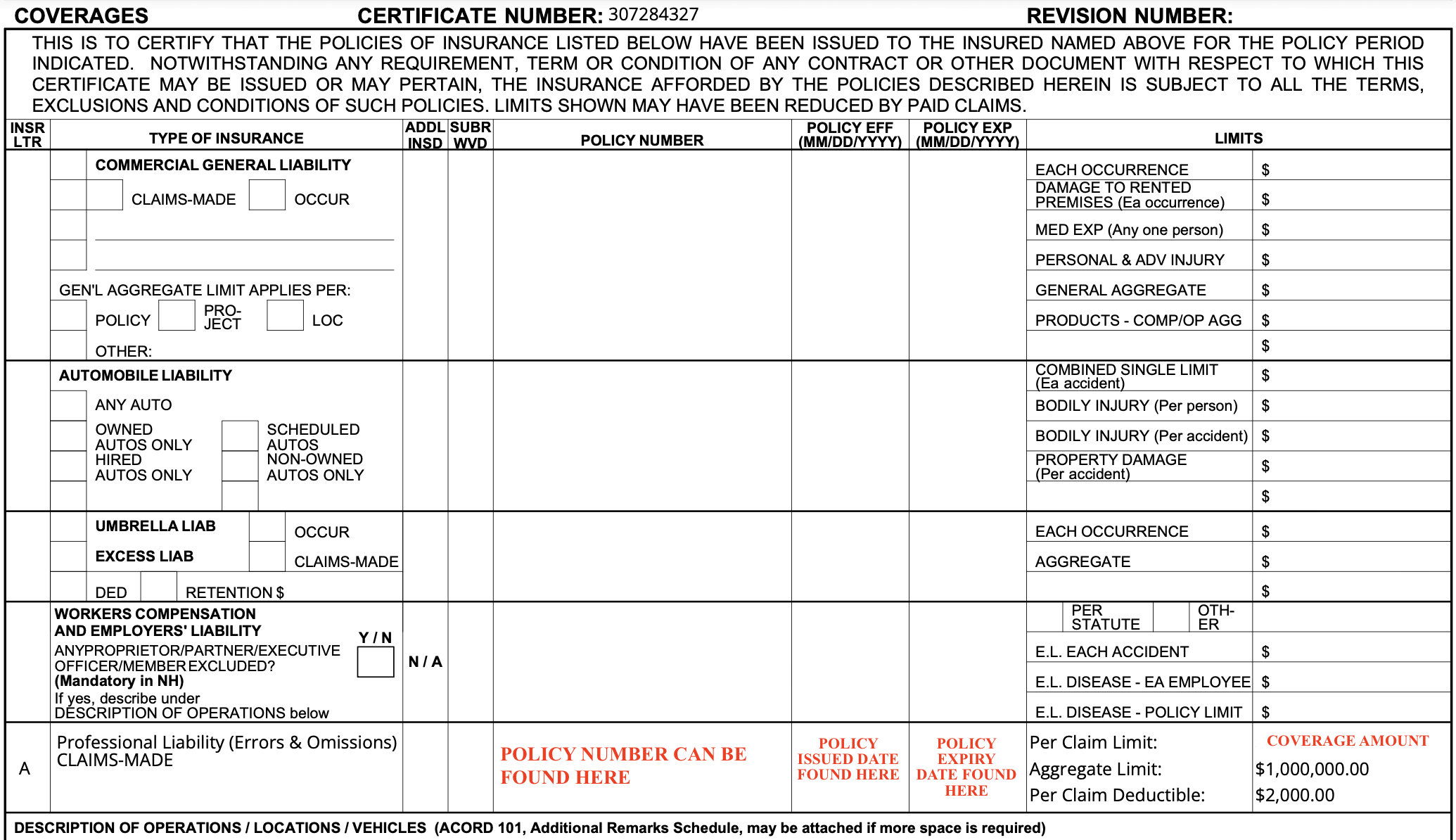
All the information you need to input into the dashboard is on your Certificate of Insurance. See below where to find that information.
Submitting a contracting request
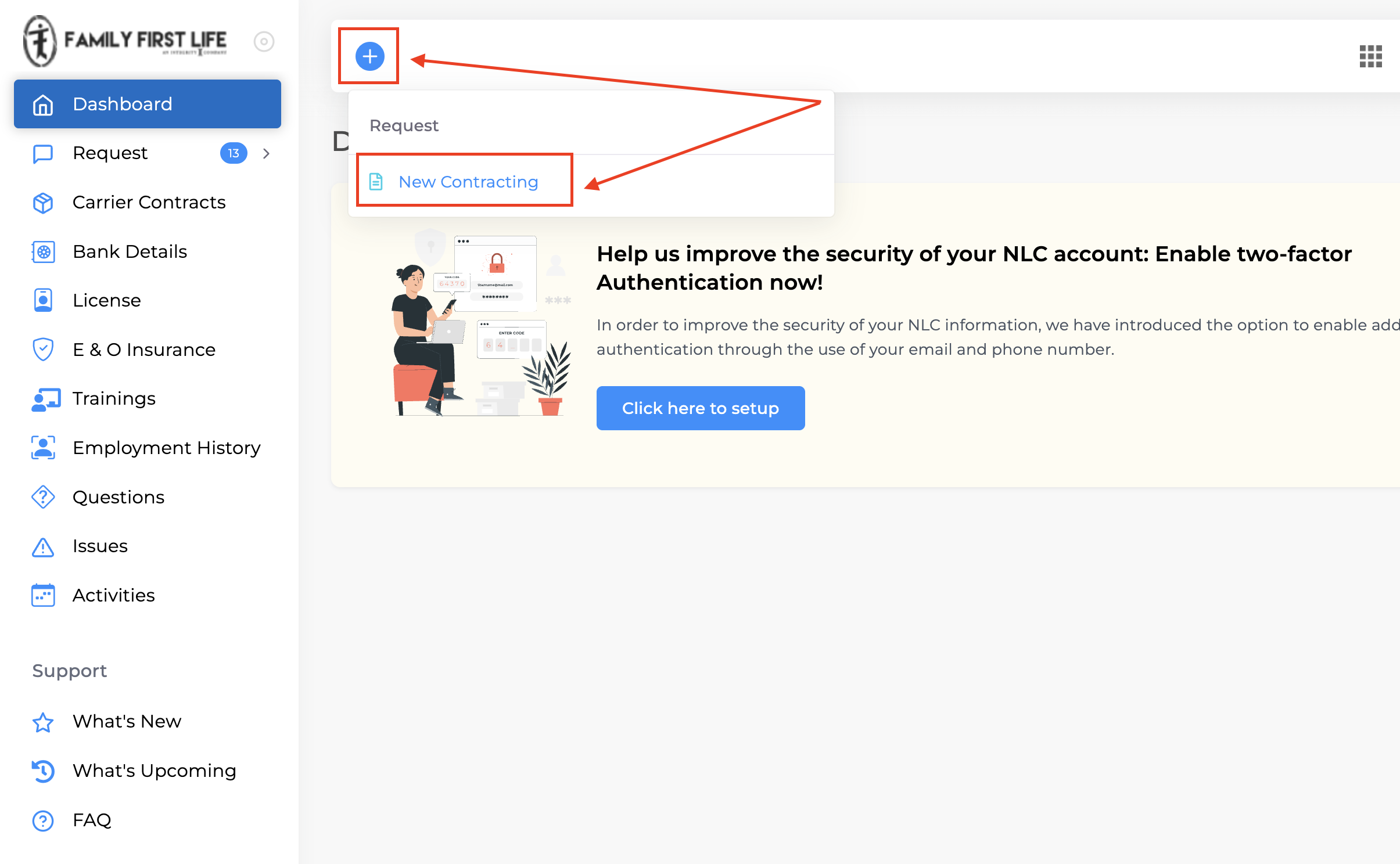
Once those 6 tabs are complete, you can request carriers by clicking on the + sign on the NLC dashboard, then “New Contracting”.
You will be taken to a new page to select carriers. NOTE: This process works best on Chrome. If at any point, no options show up and you have already cleared your cache, please reach out to your onboarding agent or manager.
How to clear cache:
Go to settings
Select “Privacy & Security”
Click “delete browsing data”
Select all options
Click “delete data”
Refresh page and try again. You may need to log back into NLC.
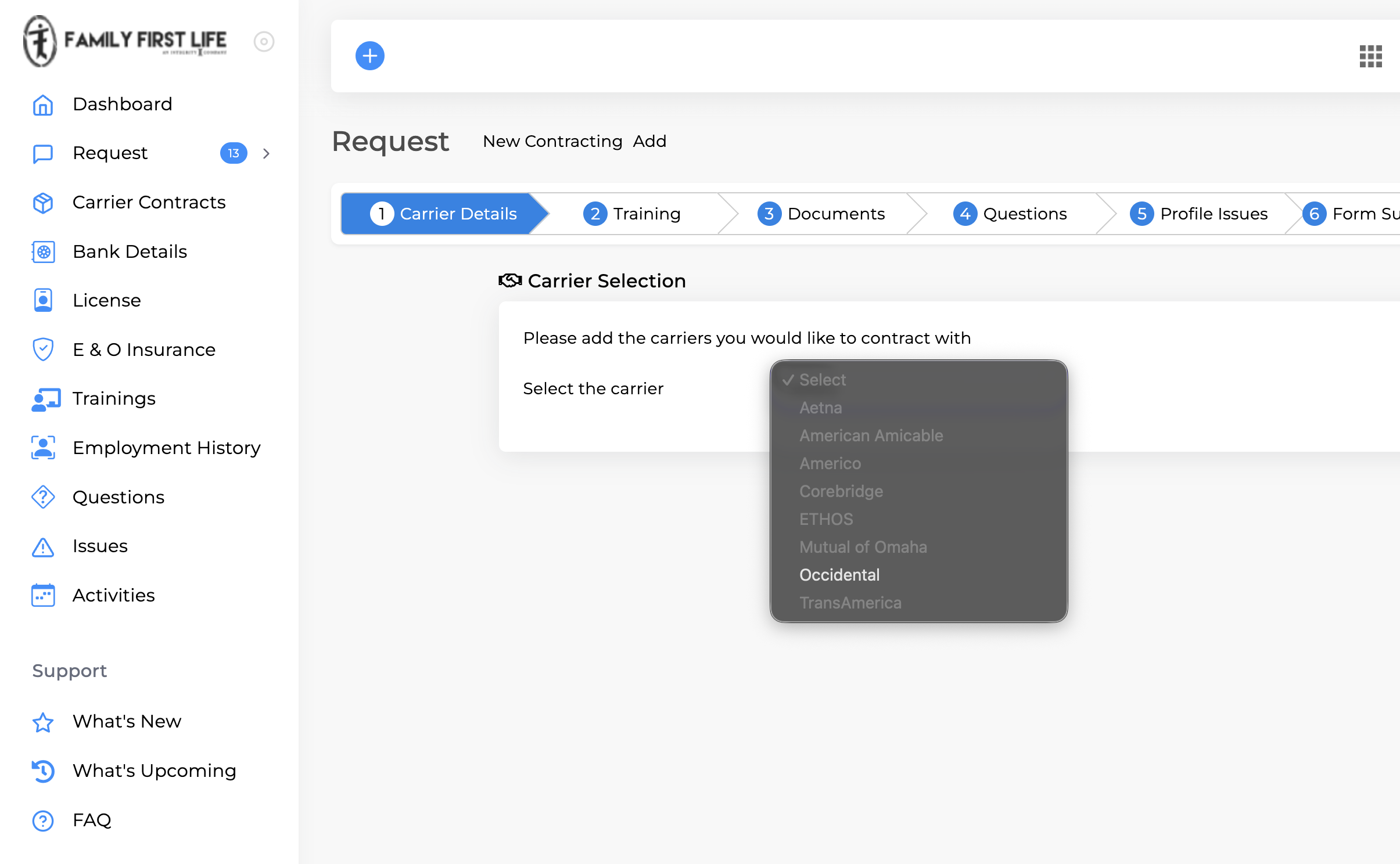
Once you’re back on the NLC dashboard, clicked the + and “New Contracting” this is the page that will show. Click the drop down and select a carrier. Any of the following is good to start:
American Amicable
Americo
Corebridge
Ethos
Mutual of Omaha
Transamerica
You can then move on.
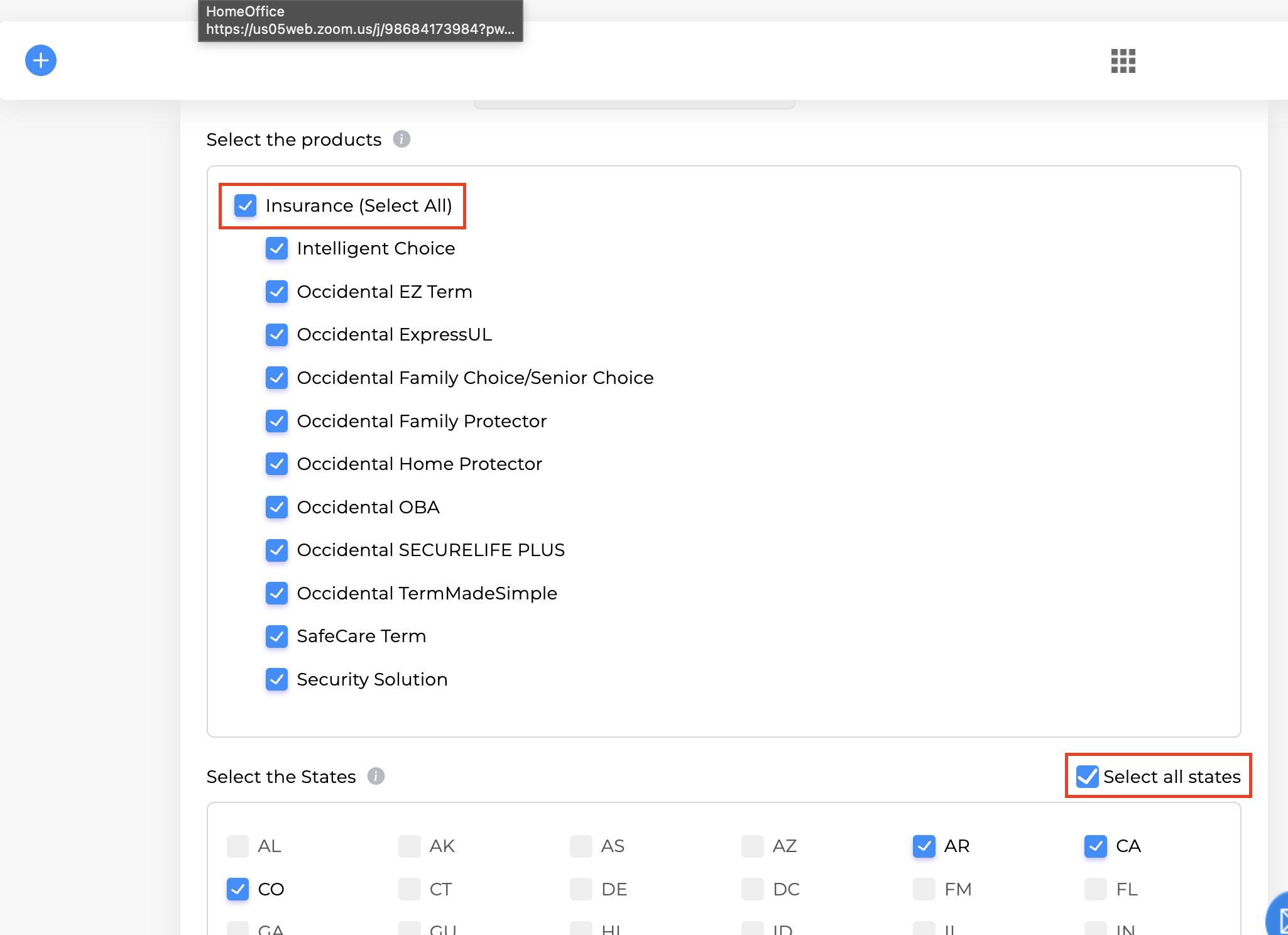
Select one of the carriers.
Select all the products available.
Select your resident state or select the option “select all states”. NOTE: The only state that you will be allowed to select when contracting for the first time is your resident state.
Select done on the bottom left.
This will add the carrier to your list of requests. Before clicking “next”, you may select another carrier and repeat the above steps. Do this for all carriers listed above. If you’re already in the process of writing IULs or Annuities, you may be recommended to contract with NLG (National Life Group) and/or F&G. These carriers are on SuranceBay and the contracting process can be completed on that site. Reach out to your onboarding agent or manager if you are requesting other carriers that is not listed.
Once you have all the carriers listed in section 1 in NLC, click “next” to move forward.
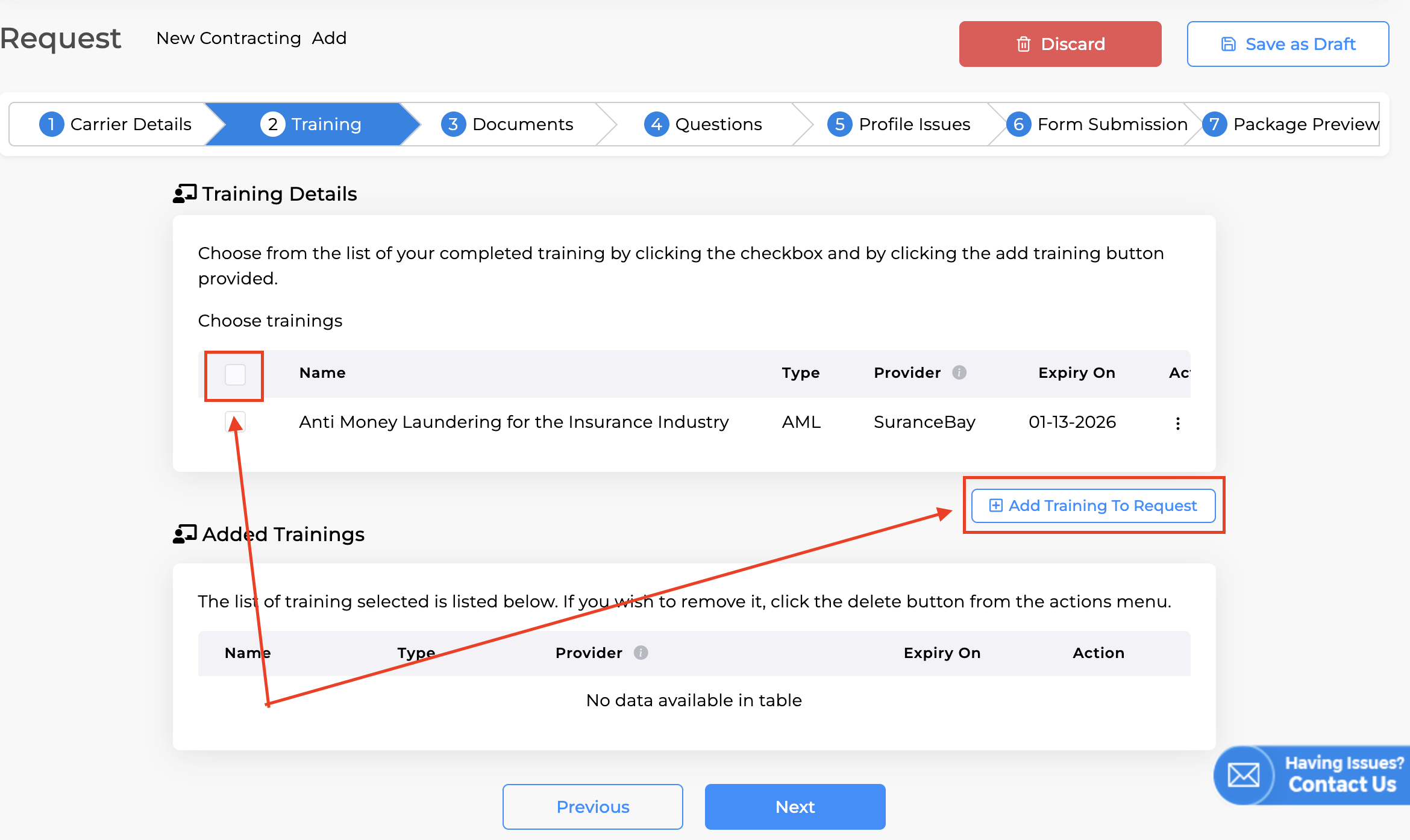
Once you click “next” it will take you to Page 2 Training. If you have not yet done so, upload your education certificate and your AML training to this section. Select the documents, then select “Add Training To Request.” Once it’s added, it will appear in the section below under “Added Trainings.”
Click “Next.”
Do the same for Page 3 Documents. Upload the E&O Insurance Certificate here, select it and “Attach File” then click “Next”
Ensure your answers to the questions are complete and accurate and if any, complete any profile issues. If there are none, click “next.”
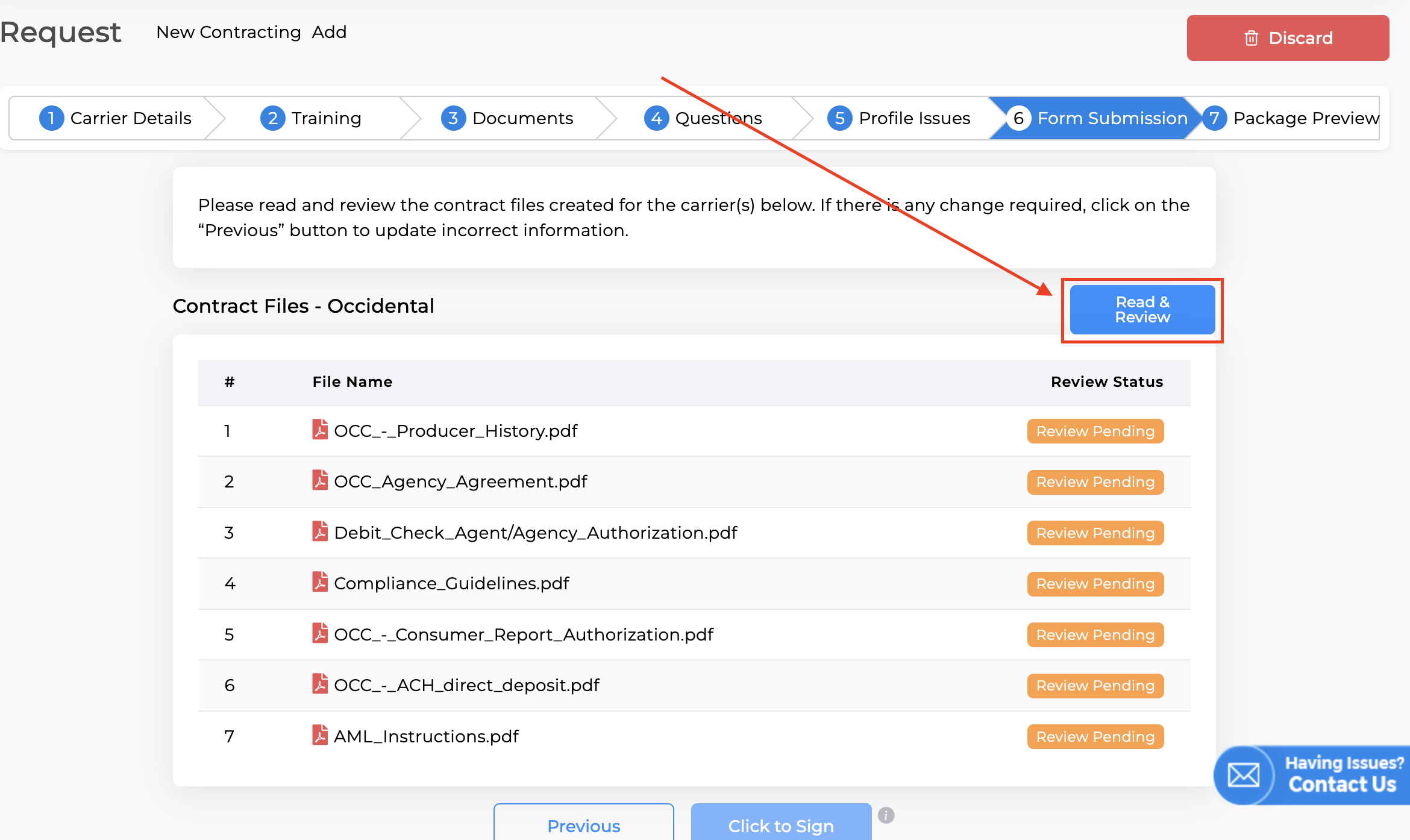
On Page 6 Form Submission, click “Read & Review.” Once you’ve reviewed all the documents, check the box to agree and authorize, then click “Confirm.” The status should change from orange “Review Pending” to green “Reviewed.”
Click “Click to Sign.” You will be sent a code and asked to enter your password.
Congrats! Once they have been added and confirmed, you have submitted your contracting requests! You may preview and download. You should be getting emails from the carriers within 2 weeks with your Writing Number(s). Be sure to save these numbers and your login information. Go back to the Onboarding Stage 3 page #5 to view next steps.
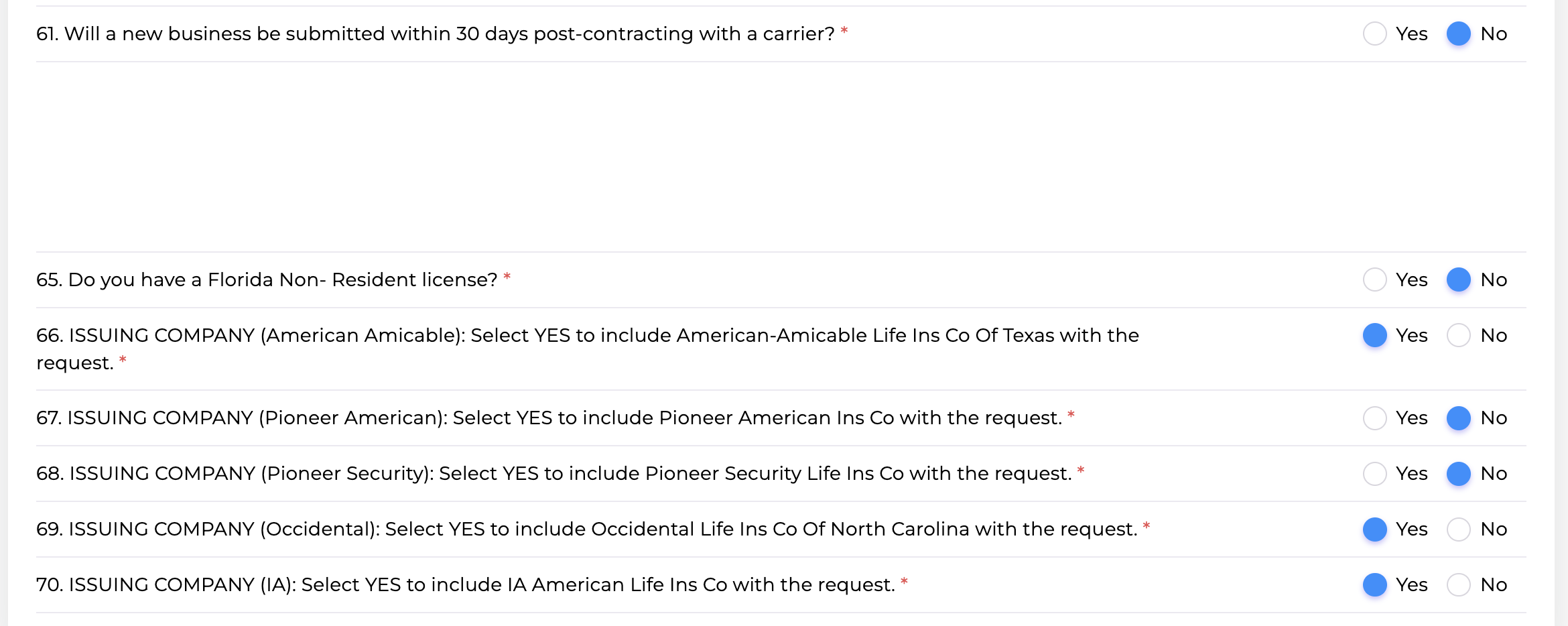
FAQ regarding the Questions section: